Why You Should Clean Your Laptop Display Regularly
- Visual clarity: Dust, fingerprints, and smudges degrade display brightness and sharpness over time.
- Longevity: Proper cleaning prevents dirt buildup in vents, hinges, and edges.
- Health: A clean screen reduces bacteria and allergens that collect over time.
- Professionalism: Whether for work or school, a pristine screen gives a polished, organized appearance.
What You’ll Need
Before you start, gather these essentials:
- Laptop screen cleaning cloth — typically a microfiber cloth that won’t scratch surfaces.
- Clean screen spray — either a commercial, alcohol‑free cleaner or homemade solution.
- Liquid for cleaning laptop — distilled water or a 50:50 mix of distilled water and white vinegar (avoid household tap water due to mineral content).
- Laptop cloth cleaner wipes — optional pre‑moistened cloth if you prefer a ready‑to‑use product.
- Compressed air (optional) — to help remove dust in corners and vents.
Step‑by‑Step Guide: How to Clean Laptop Screen
1. Power Down and Disconnect
Before applying any liquid:
- Shut down the laptop completely.
- Unplug the power cable and remove any peripherals such as USB drives or external mouse.
- If you can remove the battery safely, do so.
- This blank screen lets you better see smudges and ensures your safety—liquid near electronics is never ideal.
2. Initial Dust Removal
To clean screen laptop effectively:
- Close the lid gently and hold the laptop upside down. Give it a few light taps on the top and sides to dislodge loose debris.
- Use compressed air (held upright) to blow away dust from edges, vents, and hinges.
- Use a dry part of your laptop screen cleaning cloth to gently wipe the surface. Use soft, circular motions—don’t press hard.
This step ensures you’re not grinding dust into the screen when adding moisture.
3. Prepare the Cleaning Solution
Choose your cleaning solution:
- For commercial clean screen spray, check it’s designed for LCD/LED screens—most are alcohol‑ and ammonia‑free.
- For a DIY liquid for cleaning laptop, mix equal parts distilled water and white vinegar (or distilled water and 70% isopropyl alcohol in safe applications).
- Store the mixture in a spray bottle, labeling it clearly.
Important: Never spray the liquid directly onto the screen. Overspray can seep into the edges and damage electronics.
4. Apply Cleaner to the Cloth
- Spray the solution onto your microfiber cloth—just 1‑2 light sprays.
- If using laptop cloth cleaner wipes, tear open the packet and unroll a fresh wipe.
- Wring out excess moisture—your cloth must be slightly damp, not dripping wet.
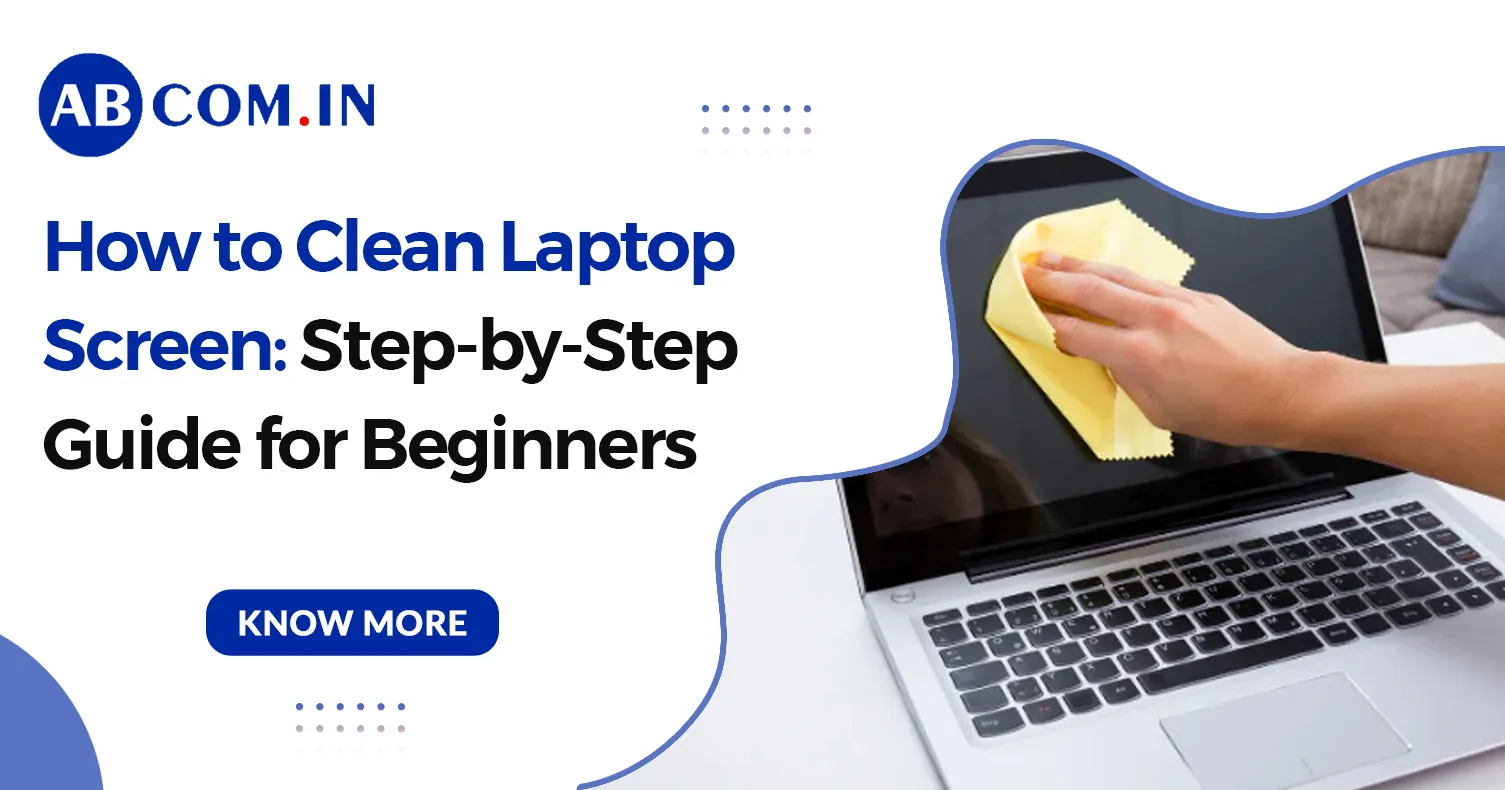
5. Gently Wipe the Screen
Time to clean the laptop display properly:
- With a soft, damp cloth, gently wipe the screen in horizontal or vertical strokes. Start from the center and slowly move outwards.
- Use light pressure—this is perfect for dislodging fingerprints and smudges without damaging your screen.
- Flip or fold the cloth to a clean section if it becomes noticeably soiled.
- Repeat until the screen looks clear and streak‑free.
6. Spot‑Check with a Dry Cloth
Take a fresh dry microfiber cloth:
- Lightly buff the screen in gentle circular motions to remove any remaining streaks or moisture.
- This step brings back screen shine and ensures the display is fully dry.
7. Don’t Forget the Edges & Frame
- Use the cloth (or compressed air) to wipe the bezel, frame, and hinges.
- You can use a Q‑tip dipped in your cleaning solution (not wet) to clean narrow crevices.
8. Final Review & Power On
- Inspect the screen under different angles and brightness levels to catch any streaks.
- Reconnect power and external peripherals, then power your laptop back on.
- Enjoy the noticeably sharper, cleaner display.
Also Read: How to Increase Laptop Speed: 10 Easy Tips for Faster Performance (2026 Guide)
Pro Tips & Common Mistakes to Avoid
Do This:
- How to clean screen of laptop safely: always keep the cloth damp, never wet.
- Use only microfiber cloth—paper towels, tissues, or colored cloths may scratch or leave lint.
- Wipe gently—screens are sensitive.
- Stick with distilled water or approved cleaners.
Don’t Do This:
- Cleaning for laptop with window cleaners or household detergents—these often contain ammonia, which damages screen coatings.
- Use clean laptop screen wipes you haven’t vetted—check ingredient list.
- Spray liquid directly on the screen—this can cause seepage and electrical damage.
- Apply hard pressure or scrub—the surface may crack.
Best Products & Accessories for cleaning laptop screen
- Laptop screen cleaning cloth: Look for ultra-soft, lint-free, washable microfiber cloths.
- Clean screen spray: Brands like iCloth, WHOOSH!, and Screen Mom are trusted for laptop displays.
- Laptop cloth cleaner wipes: Pre-moistened and convenient, but verify alcohol‑free formulas.
- Compressed air: Handy for blowing dust out of tight spots.
- Q‑tips: Great for detailed cleaning around hinges.
At Rent.ABCOM.in, we believe every rented laptop should feel like new. That’s why every device is delivered with a spotless laptop screen display and complete functionality.
Also Read: How to Prevent Laptop from Overheating: Solutions to Fix Heating Problem in Laptop
Final Thoughts
Learning how to clean computer laptop screen properly isn’t rocket science—it just takes the right tools, gentle technique, and a bit of care. With this guide, you’ll master cleaning laptop display in no time, keeping your laptop crisp, hygienic, and pleasing to use.