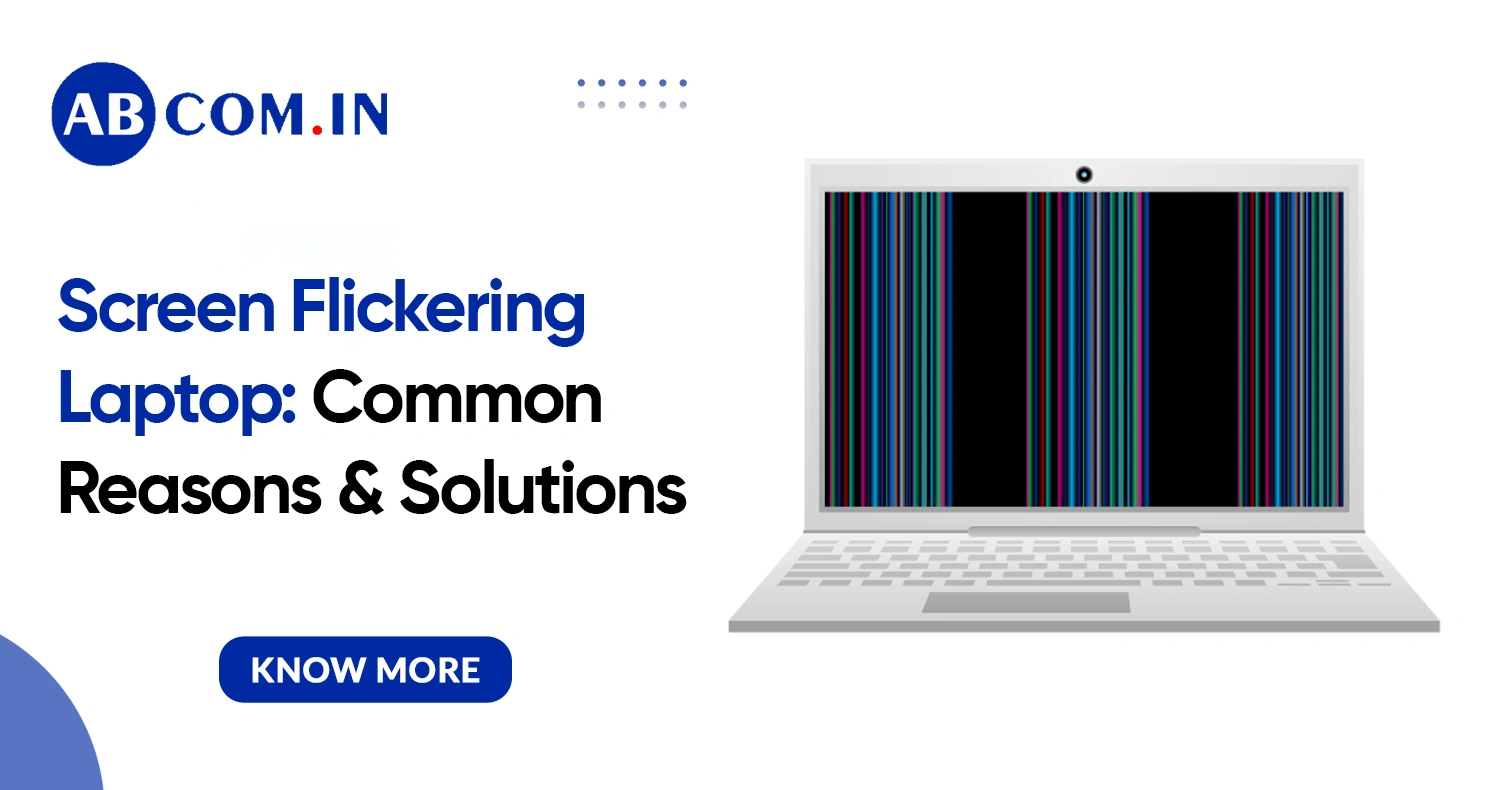
Many people immediately think their laptop screen is damaged, but that is not always true. In many cases, the problem can be fixed without replacing the display. The flickering may be caused by software issues, outdated drivers, incorrect display settings, loose hardware connections, or even overheating.
In this detailed guide, you'll learn why a screen flickering laptop happens, how to identify the exact cause, and the best solutions to fix it safely. We'll also explain when you should seek professional repair and how to prevent the problem from returning.
What Is a Screen Flickering Laptop?
A Screen Flickering Laptop is a laptop whose display repeatedly flashes, blinks, shakes, or rapidly changes brightness. Sometimes the entire screen flickers, while in other cases only certain areas are affected.
The screen flickering problem can appear occasionally or continuously. Some users notice it after updating Windows, while others experience it when opening specific applications or connecting an external monitor.
Depending on the cause, the flickering may range from a minor annoyance to a sign of serious hardware failure.
Why Is My Screen Flickering?
One of the most common questions people ask is:
Why is my screen flickering?
There isn't one single answer because multiple factors can cause the issue. The good news is that many of them are easy to identify and fix.
Below are the most common reasons.
1. Outdated or Corrupted Display Drivers
Your graphics driver controls how your laptop communicates with the display. If the driver becomes outdated, corrupted, or incompatible after a Windows update, you may experience a screen flickering laptop issue.
Signs
- Flickering starts after updating Windows
- Display flashes while opening apps
- Black screen appears for a second before returning
Solution
- Open Device Manager.
- Expand Display Adapters.
- Update the graphics driver.
- If the problem started after an update, roll back the driver.
- Restart your laptop.
Updating your graphics driver fixes many screen flickering issue cases.
2. Incorrect Display Refresh Rate
Every display operates at a specific refresh rate.
If Windows is using an unsupported refresh rate, your laptop may begin flickering.
Solution
- Open Display Settings.
- Go to Advanced Display Settings.
- Select the recommended refresh rate.
- Apply the changes.
This simple adjustment often resolves a screen flickering problem within minutes.
3. Loose Display Cable
Inside every laptop is a ribbon cable connecting the motherboard to the screen.
Over time, frequent opening and closing of the LED can loosen or damage this cable.
Symptoms
- Flickering changes when moving the laptop LED
- Lines appear on the display
- Screen becomes normal after adjusting the angle
This type of screen flickering issue usually requires professional inspection because opening the laptop incorrectly can cause further damage.
4. Faulty Graphics Card
If the GPU begins to fail, the display may flicker continuously.
Signs include:
- Colored lines
- Screen freezing
- Distorted images
- Laptop crashing during gaming
Integrated graphics problems may sometimes be fixed through driver updates, while dedicated GPU failures often require hardware repair.
5. Damaged Laptop Screen
Physical damage is another major reason behind a Screen Flickering Laptop. Even small cracks that aren't immediately visible can affect display performance.
Common causes include:
- Dropping the laptop
- Pressure on the screen
- Liquid damage
- Manufacturing defects
If the display itself is damaged, replacement is usually the only permanent solution.
6. Overheating
Heat affects many laptop components, including the graphics processor.
If your laptop becomes too hot, you may notice:
- Flickering during gaming
- Random brightness changes
- Screen flashing after extended use
Solution
- Clean cooling vents.
- Remove dust from fans.
- Use a cooling pad.
- Avoid blocking air vents.
- Replace old thermal paste if necessary.
Keeping your laptop cool helps prevent many hardware-related display problems.
7. Software Compatibility Problems
Sometimes the issue isn't your laptop at all. Certain applications conflict with Windows display settings.
You may notice the flickering only when using:
- Browsers
- Video editing software
- Graphic design programs
- Older applications
Updating or reinstalling the software often resolves the issue.
8. Windows Updates
A Windows update may occasionally install incompatible graphics drivers.
If your screen flickering laptop problem started immediately after an update:
- Check for newer updates.
- Roll back the graphics driver.
- Restore Windows to an earlier point if necessary.
9. Malware or Virus Infection
Although uncommon, malware can interfere with graphics drivers and system processes.
Run a complete antivirus scan if:
- Flickering started unexpectedly
- Laptop performance has slowed
- Unknown applications are running
Removing malicious software may solve the screen flickering issue.
How to Diagnose a Screen Flickering Problem
Before replacing any hardware, identify the source of the issue.
Check Task Manager
Press:
Ctrl + Shift + Esc
If Task Manager also flickers, the problem is likely related to your graphics driver or hardware.
If only the desktop flickers, software is often responsible.
Connect an External Monitor
This is one of the easiest diagnostic methods.
If the external monitor works perfectly:
- Your laptop display may be faulty.
- The display cable could be loose.
If both displays flicker:
- Graphics driver
- Graphics card
- Windows settings
are likely causing the problem.
Boot into Safe Mode
Safe Mode loads only essential drivers. If flickering disappears in Safe Mode, software or drivers are almost certainly responsible.
How to Fix a Screen Flickering Laptop
Here are the most effective solutions.
Restart Your Laptop= Temporary system glitches often disappear after restarting.
Update Graphics Drivers= Always download the latest drivers from your laptop or graphics manufacturer.
Install Windows Updates= Keeping Windows updated improves compatibility and stability.
Check Display Settings
Verify:
- Resolution
- Refresh rate
- Brightness settings
Incorrect settings frequently cause flickering.
Scan for Malware= Use a trusted antivirus program to remove viruses and unwanted software.
Perform a System Restore= If everything worked previously, restoring Windows to an earlier point may solve the problem.
Replace Damaged Hardware
If software fixes fail, you may need professional repair for:
- LED panel
- Display cable
- Graphics card
- Motherboard
When Should You Visit a Repair Technician?
You should seek professional help if:
- The screen has physical damage.
- Flickering continues after reinstalling drivers.
- The laptop overheats frequently.
- External monitor testing confirms hardware failure.
- Colored lines appear permanently.
- The screen goes black repeatedly.
Ignoring these symptoms may lead to complete display failure.
Tips to Prevent a Screen Flickering Laptop
Preventive care can significantly reduce the chances of future problems.
Follow these best practices:
- Keep graphics drivers updated.
- Install Windows updates regularly.
- Avoid dropping the laptop.
- Clean cooling vents every few months.
- Use a protective laptop sleeve.
- Don't close the LED forcefully.
- Avoid exposing the laptop to excessive heat.
- Use only genuine chargers and accessories.
These habits help extend the life of your display and internal components.
Need a Reliable Laptop While Yours Is Being Repaired?
If your screen flickering laptop is affecting your work, studies, or business, don't let downtime slow you down. Whether your laptop needs display repair, hardware replacement, or professional diagnostics, having a dependable backup can keep you productive.
ABCom offers affordable and flexible Laptop on Rent solutions for students, professionals, startups, and businesses. Choose from a wide range of well-maintained laptops with the latest configurations, available for short-term or long-term rental. With quick delivery, responsive support, and cost-effective rental plans, you can continue your work without interruption while your laptop is being repaired.
Get in touch with ABCom today to find the right rental laptop for your needs and stay productive without the hassle of unexpected laptop issues.
Final Thoughts
A Screen Flickering Laptop doesn't always mean your laptop is permanently damaged. In many cases, the problem is caused by outdated graphics drivers, incorrect display settings, software conflicts, or overheating—all of which can often be fixed without replacing the screen.
If you've been asking, "why is my screen flickering", start by checking your drivers, refresh rate, and Windows updates. Simple troubleshooting steps can resolve many instances of a screen flickering problem or screen flickering issue. However, if the flickering continues after trying software fixes or is accompanied by physical damage, lines on the display, or persistent black screens, it's best to consult a qualified technician.
By understanding the causes, diagnosing the issue correctly, and following preventive maintenance practices, you can keep your laptop display working smoothly and avoid costly repairs in the future.