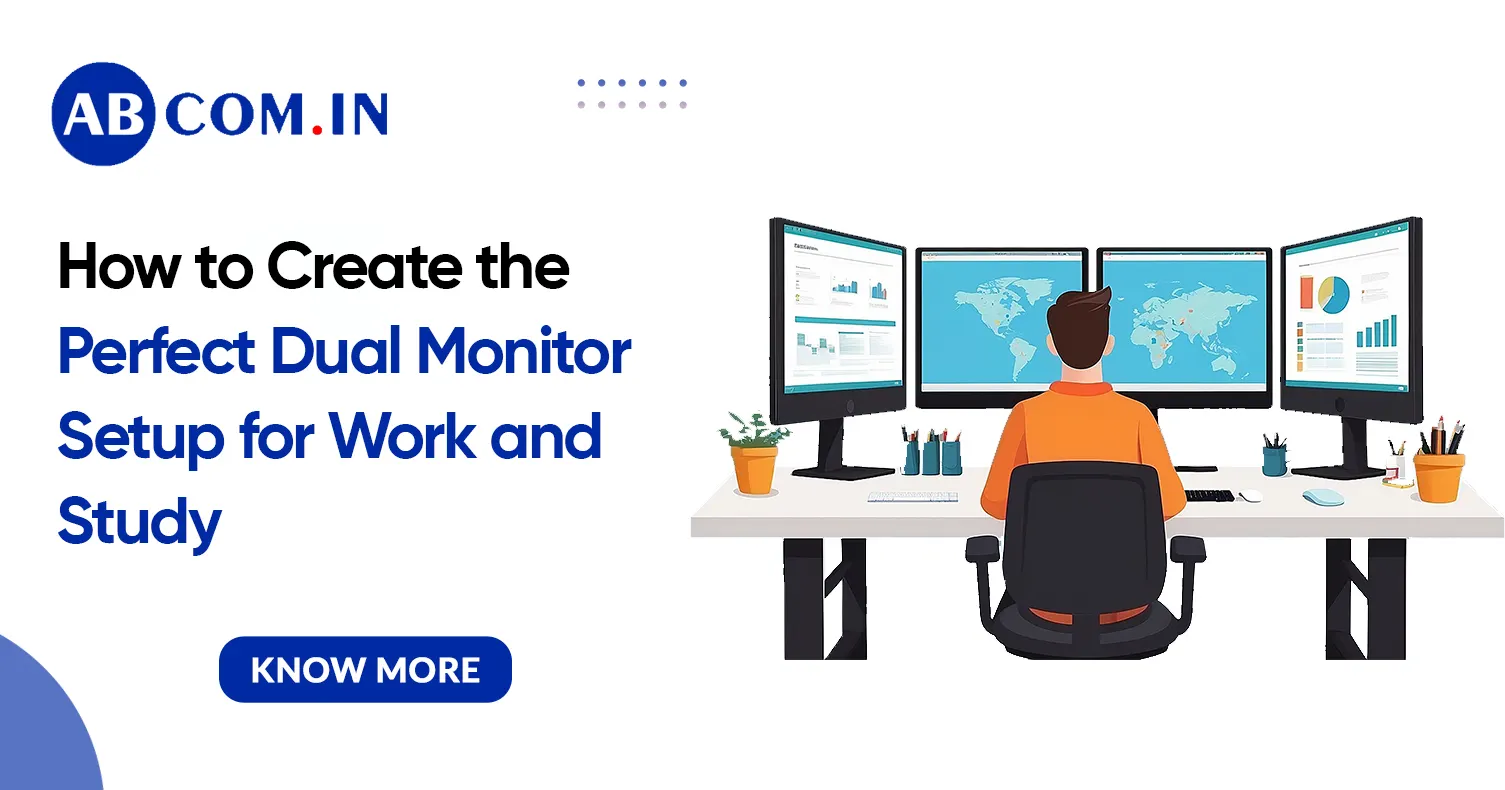
Instead of constantly changing between windows, you can keep two applications visible at the same time. For example, you can use one monitor for a video meeting and the other for taking notes. Students can read a research paper on one screen while writing an assignment on the other.
But simply adding a second monitor is not enough. The monitors need to be positioned correctly, connected properly, and adjusted for comfortable long-term use.
This guide explains how to create the perfect dual monitor setup for work and study, including monitor selection, desk arrangement, connections, software settings, eye comfort, and common mistakes.
What Is a Dual Monitor Setup?
A dual monitor setup uses two separate displays connected to the same computer. Your computer treats the displays as either an extended desktop or, in some cases, a duplicated screen.
For work and study, the extended display option is usually the most useful. It allows you to place different applications on each screen.
For example:
- Monitor 1: Email, Microsoft Word, Google Docs, or spreadsheets
- Monitor 2: Web browser, research material, online lectures, or communication apps
This setup can reduce the need to constantly minimize and reopen windows.
Benefits of Using Two Monitors
A dual monitor workspace can be useful for many types of users.
1. Better Multitasking
You can keep multiple applications open and visible. This is particularly helpful when comparing information, writing documents, managing data, or attending online meetings.
2. Easier Research
Students and researchers can display their source material on one screen and their notes or assignments on the other. This can make research more organized.
3. More Workspace
A single laptop or monitor can feel crowded when several applications are open. Two screens provide more digital workspace without requiring constant window switching.
4. Convenient Video Meetings
You can keep a video meeting on one monitor while viewing documents, notes, or presentations on the second.
5. Improved Organization
A well-planned setup can give each monitor a clear purpose. This can help reduce desktop clutter and make frequently used applications easier to access.
However, two monitors do not automatically make everyone more productive. The real benefit comes from organizing them around the tasks you perform most often.
How to Choose the Right Monitors
You do not necessarily need two expensive monitors. For general office work and studying, several practical features are more important.
Screen Size
A screen around 24 to 27 inches is a common choice for a desk setup. A larger display can provide more workspace, but it also requires more desk depth.
Resolution
For everyday work and study, Full HD (1920 × 1080) can be sufficient on smaller screens. A 2560 × 1440 display can provide additional workspace and sharper text, especially on larger monitors.
Panel Type
IPS panels are popular for office and study environments because they generally provide good viewing angles and image quality.
Refresh Rate
You do not need an extremely high refresh rate for ordinary office tasks, writing, research, or studying. A standard refresh rate is generally enough.
Matching Monitors
Two identical monitors can create a cleaner and more consistent workspace. However, they do not have to be identical. If your budget is limited, you can use an existing monitor with a new one.
Try to choose displays with similar height, resolution, and brightness when possible.
Arrange Your Monitors Correctly
Monitor placement is one of the most important parts of a comfortable dual-screen setup.
If you use both monitors equally, place them side by side with their inner edges touching. Position the center of the two screens approximately in front of you.
If one monitor is your primary display, place that monitor directly in front of you and position the second monitor slightly to the side.
Avoid placing the primary monitor at an extreme angle. Repeatedly turning your head and neck can become uncomfortable during long work or study sessions.
Set the Correct Monitor Height
Your monitor should be positioned so that you can look at the screen without constantly bending your neck downward.
A useful starting point is to position the top of the display around eye level or slightly below. The exact position depends on your posture, screen size, and viewing distance.
If your monitors are at different heights, consider using monitor stands or adjustable monitor arms.
A monitor arm can also free up valuable desk space and make it easier to align both displays.
Maintain a Comfortable Viewing Distance
Do not place the monitors extremely close to your face.
Your viewing distance should allow you to read normal text without leaning forward. If you regularly move your head closer to see text, consider increasing the font size or changing the display scaling rather than simply moving the monitor closer.
Comfort should be the priority.
Connect the Monitors Properly
Before buying a second monitor, check the ports available on your computer.
Common video connections include:
- HDMI
- DisplayPort
- USB-C
- Thunderbolt
- Older connections such as DVI or VGA on some equipment
A desktop computer may have multiple video outputs, while a laptop may have only one physical display connector.
If your computer does not have enough display outputs, you may need a compatible docking station, USB-C hub, or other display solution. Always check compatibility with your computer before purchasing an adapter or dock.
Configure the Displays
- After connecting both monitors, open your operating system's display settings.
- Choose Extend these displays rather than duplicating the screen if you want two independent work areas.
- Then arrange the virtual displays so they match their physical positions on your desk. This is important because it allows your mouse pointer to move naturally from one monitor to the other.
- You can also select which display should be the primary monitor.
Adjust Brightness and Text Scaling
Two monitors with significantly different brightness levels can be uncomfortable to use.
Try to make the brightness and color appearance reasonably similar. You do not need perfect calibration for normal office work, but large differences can be distracting.
If text looks too small, increase display scaling or application font size. Increasing text size is often better than sitting closer to the screen.
Think About Lighting
- Good desk lighting is an important part of a comfortable workstation.
- Avoid placing a bright window directly behind the monitors if it creates glare. At the same time, do not work in a completely dark room with very bright screens.
- Use soft, even room lighting when possible. Adjust the monitor angle to reduce reflections from windows and overhead lights.
Use the Second Monitor Intentionally
A common mistake is to buy a second monitor without deciding how it will be used.
Create a simple system.
For example:
Primary monitor:
Writing, spreadsheets, assignments, programming, or the main work application.
Secondary monitor:
Research, email, reference documents, communication apps, calendars, or instructional videos.
This makes the extra screen useful instead of turning it into another source of distraction.
Keep Your Desk Ergonomic
- Your monitors are only one part of a healthy workstation.
- Keep your keyboard and mouse at a comfortable height. Your shoulders should remain relaxed rather than raised while typing.
- Your feet should be supported, and your chair should allow you to maintain a comfortable upright posture.
- If you use a laptop as your main computer, consider raising the laptop screen and using a separate keyboard and mouse. This can provide a more practical workstation arrangement.
Take Regular Breaks
Even the best monitor setup cannot replace regular breaks.
When working or studying for long periods, occasionally look away from the screens and focus on something farther away. You can also stand, stretch, walk briefly, or change your posture.
If you experience persistent eye discomfort, headaches, neck pain, or other symptoms, consider speaking with an appropriate healthcare professional or eye-care provider. A monitor setup should support comfort, but it cannot diagnose or treat a health problem.
Common Dual Monitor Mistakes to Avoid
Avoid these common problems:
1. Different screen heights: Misaligned displays can feel awkward and may encourage uncomfortable neck movements.
2. Excessive brightness: Very bright screens can be uncomfortable, particularly in a dim room.
3. Too many open windows: More screen space does not mean every application needs to remain visible.
4. Poor cable management: Loose cables can make the workspace messy and difficult to maintain.
5. Ignoring computer compatibility: Check your computer's supported display outputs and resolutions before purchasing monitors.
6. Putting both screens at extreme angles: Keep the displays within a comfortable viewing area.
A Simple Ideal Dual Monitor Setup
For a typical student or remote worker, a practical setup could include:
- Two 24- or 27-inch monitors
- Similar screen resolutions
- One primary monitor centered in front of you
- A second monitor positioned beside it
- An adjustable monitor stand or arm
- A comfortable keyboard and mouse
- Proper desk lighting
- A computer or docking station that supports both displays
- Organized cables
You do not need the most expensive equipment. A comfortable, correctly positioned setup is usually more valuable than buying premium specifications you do not need.
Ready to Build Your Perfect Work or Study Setup?
A reliable laptop can make your dual monitor setup even more flexible, whether you are working remotely, attending online classes, researching, or managing multiple tasks. If you need a laptop without the cost of purchasing a new one, ABCom can help you find a practical solution.
Choose Laptop on rent from ABCom and get access to a suitable device for your work or study needs. Pair it with your dual monitor setup and create a comfortable, productive workspace without a large upfront investment.
Need a laptop for your next project, course, or work setup? Contact ABCom today and find the right Laptop on rent for your requirements.
Final Thoughts
Creating the perfect dual monitor setup for work and study is mainly about comfort, organization, and choosing equipment that matches your daily tasks.
Start with reliable monitors that fit your desk. Position them at a comfortable height and viewing distance, connect them using compatible ports, and configure the operating system to extend the desktop. Then assign a clear purpose to each screen.
Most importantly, remember that productivity is not only about having more screen space. Good lighting, comfortable posture, sensible screen brightness, regular breaks, and an organized workspace are equally important.
A carefully planned dual monitor setup can make research, writing, multitasking, online learning, meetings, and everyday computer work feel much more manageable—without requiring an expensive or complicated workstation.